BEANS! (New update!)
A downloadable game for Windows, macOS, and Linux
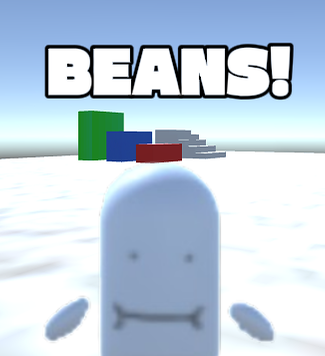
In this online game, you are a bean, exploring the world of BEANS and finding various unexpected surprises. Team up with friends and play games together in BEANS. BEANS is supported on Windows, macOS, and Linux.
Download
Install instructions
Windows Installation Instructions
-
Click Download and wait for the file to finish downloading.
-
Once completed, extract the ZIP file.
-
Open the extracted folder and locate the application "BEANS!"
-
Right–click BEANS! and select Create Shortcut to place it on your Desktop for easy access.
Optional: Change the App Icon
-
Right–click the shortcut and select Properties.
-
Click Change Icon…
-
Browse and select the Favicon file.
-
Click OK and then Apply.
macOS Installation Instructions
To install BEANS! on macOS, locate the file BEANS!.dmg (usually in your Downloads folder) and double-click it to open the disk image. A new Finder window will appear showing the BEANS! application file. Drag the BEANS! icon into your Applications folder to copy it to your system. Once the copy is complete, eject the BEANS! disk image by clicking the ⏏ Eject button next to it in Finder’s sidebar or dragging the mounted image to the Trash. This safely unmounts the installer from your desktop.
Next, open your Applications folder and double-click BEANS! to start the game. Because the developer is unidentified, macOS may display a message saying the app cannot be opened. If that happens, go to System Settings → Privacy & Security, scroll down to the Security section, and you’ll see an option to Open Anyway next to the BEANS! message. Click Open Anyway, then confirm again when prompted. The game should now launch normally. Once it opens, you can move the BEANS! app icon to your Dock for easy access in the future.
Linux Installation Instructions
- When your browser asks, choose Save File.
- After it finishes, open your Downloads folder — the file will be there.
Then to open it:
- Open the file manager.
- Right-click BEANS_For_Linux.zip
- Select Extract Here.
Comments
Log in with itch.io to leave a comment.
Hope you guys enjoy!